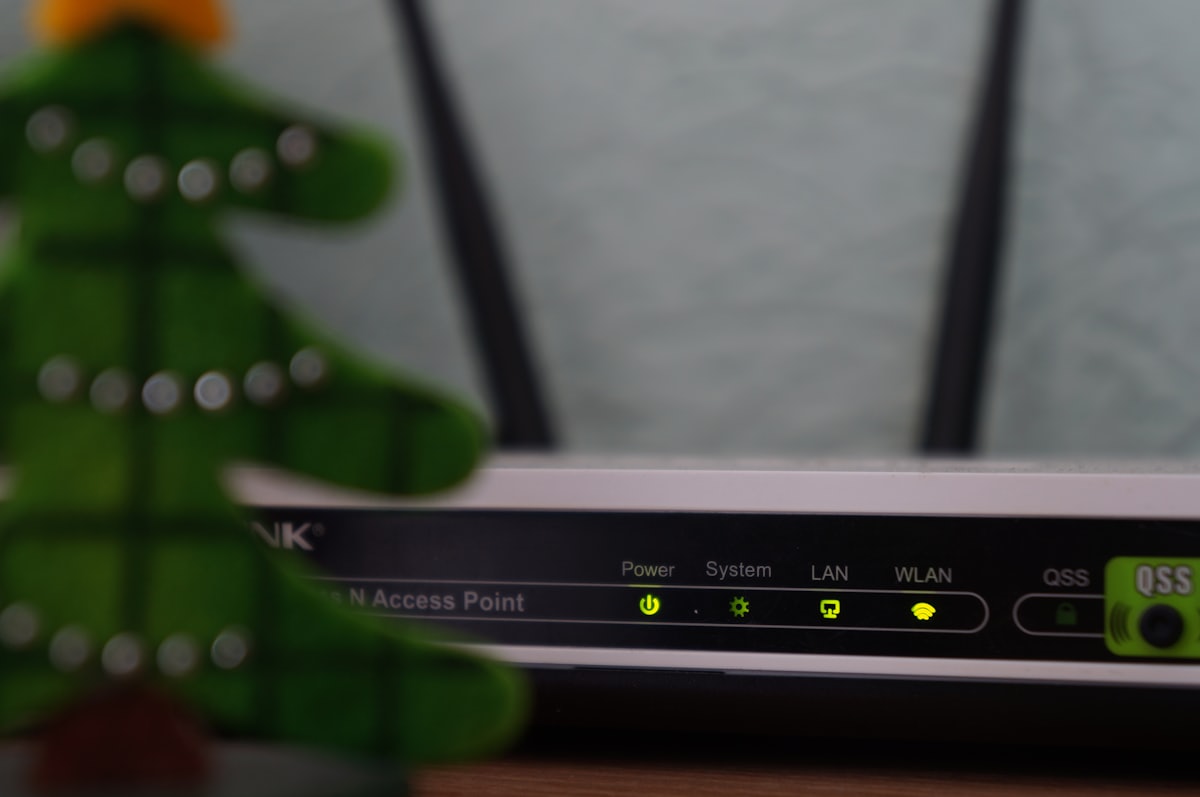
The name you see when you pick a WiFi network is its SSID (Service Set Identifier). Routers ship with a generic SSID like "NETGEAR47" or "TP-Link_2.4G," and changing it makes your network easy to recognize - and a little safer. Here is how.
What an SSID actually is
An SSID is just the broadcast name of your wireless network; there is nothing technical to fear in changing it. For the full background, see what is an SSID. Renaming it does not change your password or your internet speed.
How to change the SSID
- Log in to your router's admin page - see how to log in to your router.
- Open the Wireless or WiFi section.
- Find the field labeled SSID, Network Name, or WiFi Name and type your new name.
- If your router has separate 2.4 GHz and 5 GHz (or 6 GHz) names, decide whether to give them the same name (simpler roaming) or different names (manual band control).
- Click Save or Apply.
What makes a good network name
Keep it identifiable but not personal. A few guidelines:
- Do not include your name, address, or apartment number - it tells strangers which network is yours.
- Avoid the router's brand and model; that hands attackers a head start on known vulnerabilities.
- Use plain text and standard characters so older devices display it correctly.
After you rename it
Devices see the new SSID as a brand-new network, so they will disconnect and you will need to rejoin each one with your existing WiFi password. If you also want to update the password while you are in here, follow how to change your WiFi password. A clean, recognizable SSID also makes it easier to set up and spot a dedicated guest network later.