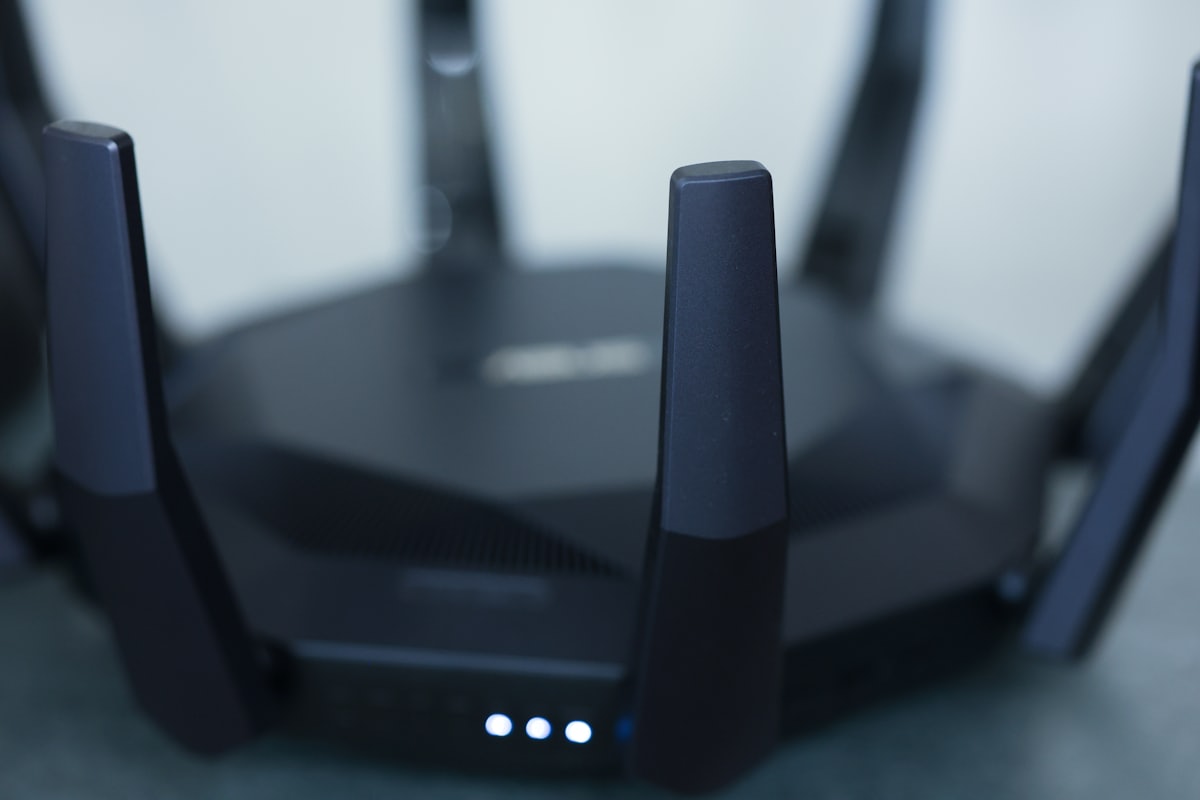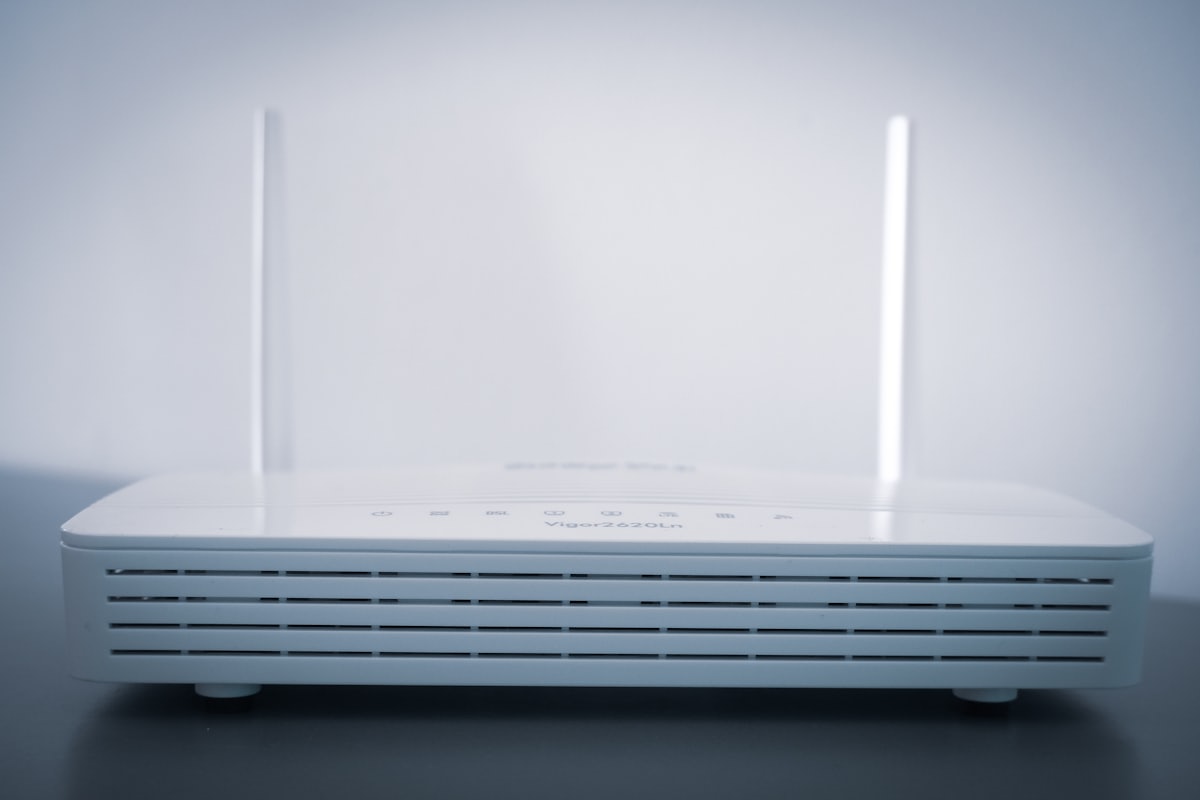
The row of lights on your router (and modem) is a quick diagnostic tool. Colors and blink patterns vary by brand, but the categories are consistent. Reading them tells you whether a problem is your WiFi, your router, or your internet provider before you start troubleshooting.
The common lights
- Power: solid means the router is on and booted. Blinking power usually means it is still starting up or running a firmware update - do not unplug it.
- Internet / WAN (often a globe icon): this is the most important one. Solid (usually green or white) means the router has a valid internet connection from your ISP.
- WiFi / Wireless: shows the wireless radios are on; it often blinks with activity. Separate lights may indicate the 2.4 GHz and 5 GHz bands.
- LAN / Ethernet: lit when a device is plugged into that wired port; blinking indicates data is flowing.
Red or orange internet light: the big one
If the internet/WAN light is red, orange, or amber, your router is powered and working but has not received a valid public IP address from your ISP. The break is upstream of your WiFi - it is a modem, cabling, or provider issue, not something a WiFi setting will fix. This lines up with seeing a 169.254.x.x address on your router's status page.
A light that is off entirely
An unlit internet light usually means no signal is reaching the router at all - check the cable from the modem to the router's WAN port, and confirm the modem itself is online.
Solid vs blinking
In general, solid means a stable connection and blinking means activity or a process in progress (booting, updating, or transferring data). Rapid or unusual blinking on the internet light can indicate the router is repeatedly trying and failing to connect.
Use the lights to troubleshoot
If the internet light is red or off, the problem is your modem or ISP - power-cycle the modem first, then the router. If the internet light is solid but you still cannot get online, the problem is inside your network or on your device: work through WiFi connected but no internet. A device that cannot get an address may have a DHCP error. When in doubt, check your model's manual - exact colors differ between brands.