A factory reset returns your router to the settings it had out of the box. It is the right move when you are locked out of the admin page, selling the device, or chasing a problem nothing else fixes - but it erases everything you have configured. Here is how to do it correctly.
Reset vs reboot - they are not the same
A reboot (power cycle) just restarts the router and keeps all your settings; it fixes most temporary glitches and should always be your first try. A factory reset wipes everything. Do not reset when a reboot will do.
What a reset erases
- Your WiFi name and password (back to the defaults on the label).
- Your admin password.
- Port forwarding, DHCP reservations, parental controls, and guest networks.
- Any custom DNS, QoS, or VPN configuration.
How to factory reset
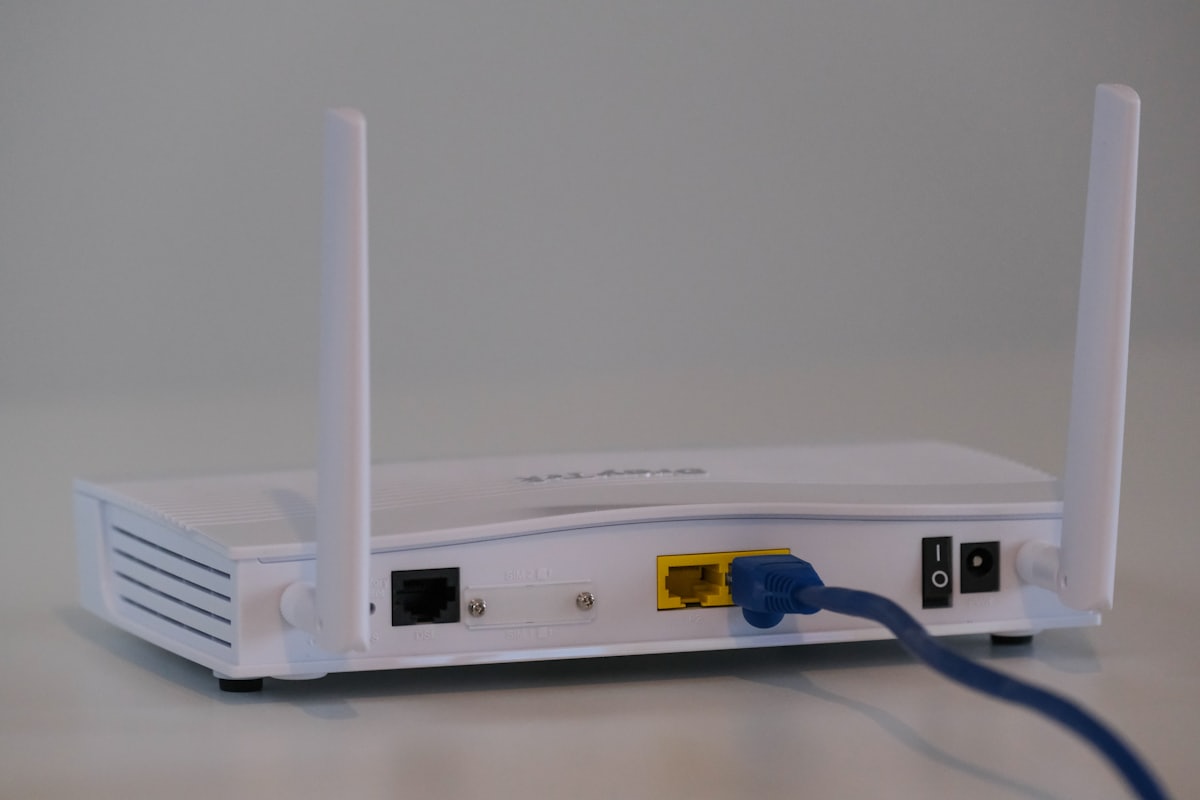
- With the router powered on, find the recessed Reset button on the back (you will need a paperclip).
- Press and hold it for about 10 seconds - until the lights flash or the router restarts.
- Release and wait a few minutes for it to fully reboot.
- Reconnect using the default WiFi name and password printed on the label.
The 30-30-30 myth
You may read about a "30-30-30 reset" (hold 30 seconds, unplug 30 seconds, hold 30 more). That technique was for certain older routers and can actually harm some modern devices - manufacturers now recommend the simple 10-second hold above (or the steps in your model's manual). Skip 30-30-30 on current hardware.
After the reset
Log back in (how to log in to your router), then immediately set a strong admin password, change the WiFi password, and re-enable WPA3. If you reset because you forgot the admin password, the default router passwords directory has the factory credentials for your brand.
When a reset will not help
If your real problem is "connected but no internet," a reset rarely fixes it - work through our dedicated guide on WiFi connected but no internet first.